Cómo Hacer un Stencil de Tatuaje en Procreate (Paso a Paso)
6 min read
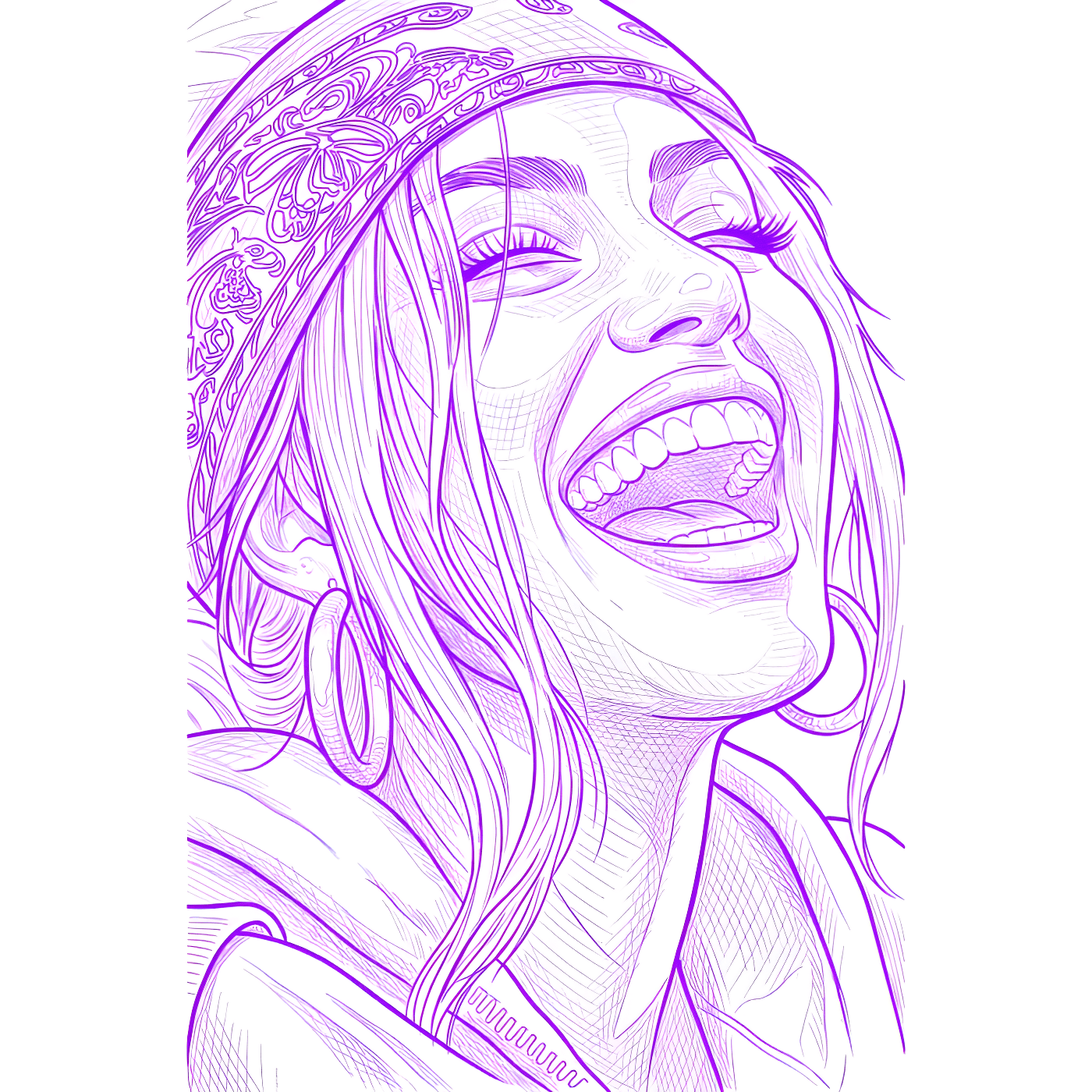
Si dibujas en Procreate, ya tienes hecha la parte más difícil de un tatuaje: el arte. El paso que falta es convertir ese dibujo en un stencil de tatuaje en Procreate limpio: líneas marcadas y continuas, sin color, sin sombreado suave y sin fondo, listas para imprimir y transferir a la piel. Esta guía cubre cómo exportar tu arte de Procreate de la forma correcta, el flujo manual de preparación del stencil dentro de Procreate y la vía más rápida que te da líneas listas para tatuar en segundos.
Paso 1: Exporta tu arte de Procreate
Antes de que nada se convierta en stencil, necesitas una exportación limpia y en alta resolución. Procreate guarda tu trabajo en capas, así que aplanar rápidamente y usar el formato de archivo adecuado facilita mucho el resto del proceso.
Aplana o duplica tu lienzo
Exporta un PNG en alta resolución
Revisa el contraste y los bordes
El método manual para hacer un stencil en Procreate
Puedes preparar un stencil completamente dentro de Procreate. Requiere paciencia, pero funciona bien con diseños sencillos y cargados de líneas.
Convertir un dibujo a color en arte de línea
- Duplica la capa para poder volver siempre a tu original.
- Desatura la copia con Ajustes → Tono, saturación, brillo y baja la saturación a cero para trabajar en escala de grises.
- Usa Ajustes → Curvas para comprimir los tonos medios: tira de la curva hasta que el sombreado gris suave desaparezca y solo queden las líneas marcadas.
- Crea una capa nueva y repasa los bordes clave con un pincel monolínea si la pasada automática deja huecos. Esta es tu capa de líneas limpias.
- Borra u oculta el fondo para que solo quede tu arte de línea limpio.
El problema: esto te da un único acabado y depende mucho de lo limpio que ya esté tu dibujo original. Las fotografías y las referencias detalladas casi siempre requieren calcar a mano, y ahí es donde la vía manual se convierte en horas de trabajo.
La vía rápida: pásalo por Stencil AI
En lugar de comprimir curvas y calcar a mano, puedes soltar tu PNG exportado directamente en el generador y obtener arte de línea de stencil limpio en 30–60 segundos. Funciona con dibujos terminados de Procreate y con fotos de referencia en las que quieras basar una pieza.
Sube tu PNG de Procreate
Elige un estilo de línea
Genera, revisa, exporta
El refinado tampoco tiene que terminar en Procreate: el editor de retoque integrado de Stencil AI es compatible con el Apple Pencil y usa pinceles sensibles a la presión — limpiar una línea se siente como trabajar en tu lienzo de siempre — además de rellenos que se eliminan con un toque y curvas de tono para los ajustes que harías con Curvas. Cada edición se guarda con el stencil y se sincroniza entre tus dispositivos, y puedes volver al original cuando quieras.
Imprimir tu stencil
Una vez que tienes arte de línea limpio, imprimir es sencillo, pero algunos hábitos mantienen las transferencias nítidas:
- Imprime a resolución completa — escala el diseño a su tamaño final de tatuaje antes de imprimir, no después.
- Usa papel de transferencia térmico con una impresora de stencils para las líneas más nítidas, o papel de calco (carbón) para calcar a mano.
- Genera las piezas grandes o detalladas por secciones para que las líneas finas no se emborronen a escala de impresión.
- Usa arte original o de dominio público — los personajes con derechos de autor y las celebridades no se procesan, lo que protege el trabajo con clientes.
Justo en la impresión es donde la app de Stencil AI cubre lo que a Procreate le falta: imprimes a tamaño real vía AirPrint, la herramienta Warp curva el stencil para seguir hombros, brazos y curvas antes de imprimir, la medición con LiDAR (iPhones compatibles) convierte una medición de la zona con la cámara en el tamaño exacto de impresión, y la impresión multi-stencil coloca varios stencils en una hoja — cada uno a tamaño real. Durante la sesión, el Modo Tatuaje a pantalla completa mantiene la pantalla encendida, con brillo, contraste y color de tinta por capa. Más de 5.000 tatuadores de pago ya imprimen con este flujo.
Pruébalo
Puedes probar el flujo con un pack inicial de 0,99 $ — 5 créditos que nunca caducan — y ver la calidad de las líneas con tu propio arte de Procreate antes de comprometerte. Para un uso continuo, los planes Hobby, Pro y Studio incluyen créditos mensuales, todos los estilos de línea, escalado a 4K y licencia comercial completa.
Convierte tu arte de Procreate en un stencil
Exporta tu dibujo, súbelo y obtén arte de línea Outline, Standard o Hatching limpio en segundos.
Prueba Stencil AI